Add the Company Calendar in Outlook Web
This guide walks you through adding the QuestCom Company Calendar to your Outlook calendar view so company-wide events, holidays, and announcements appear alongside your personal schedule.
Steps
1. Open Outlook Calendar
Sign in to Outlook on the web and click the Calendar icon in the left navigation bar.
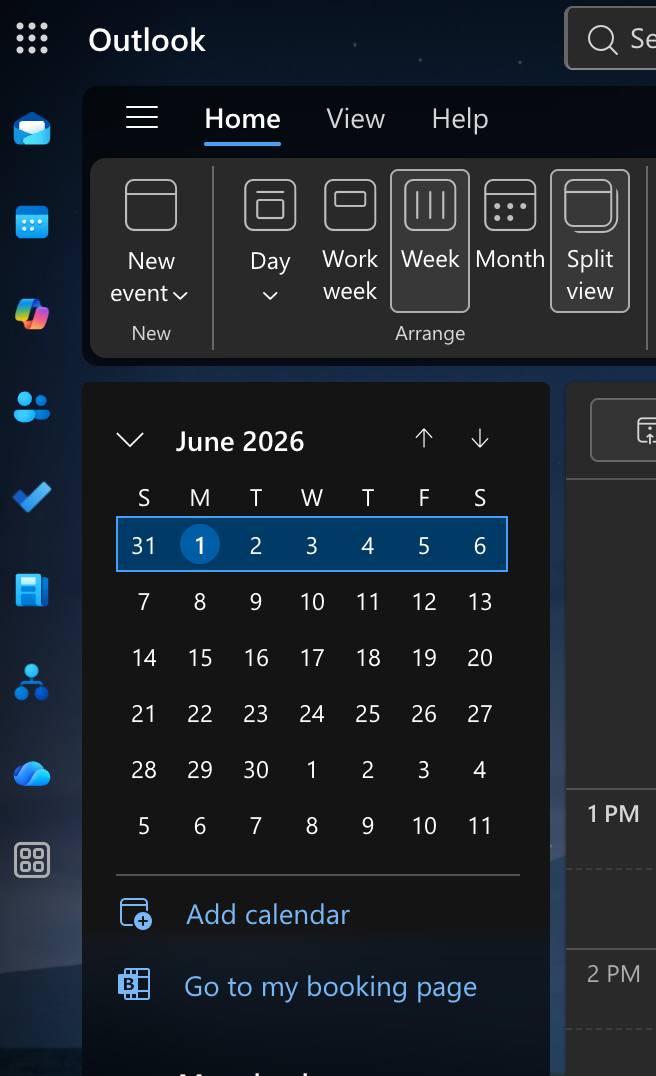
2. Click "Add calendar"
At the bottom of the left sidebar, click Add calendar.
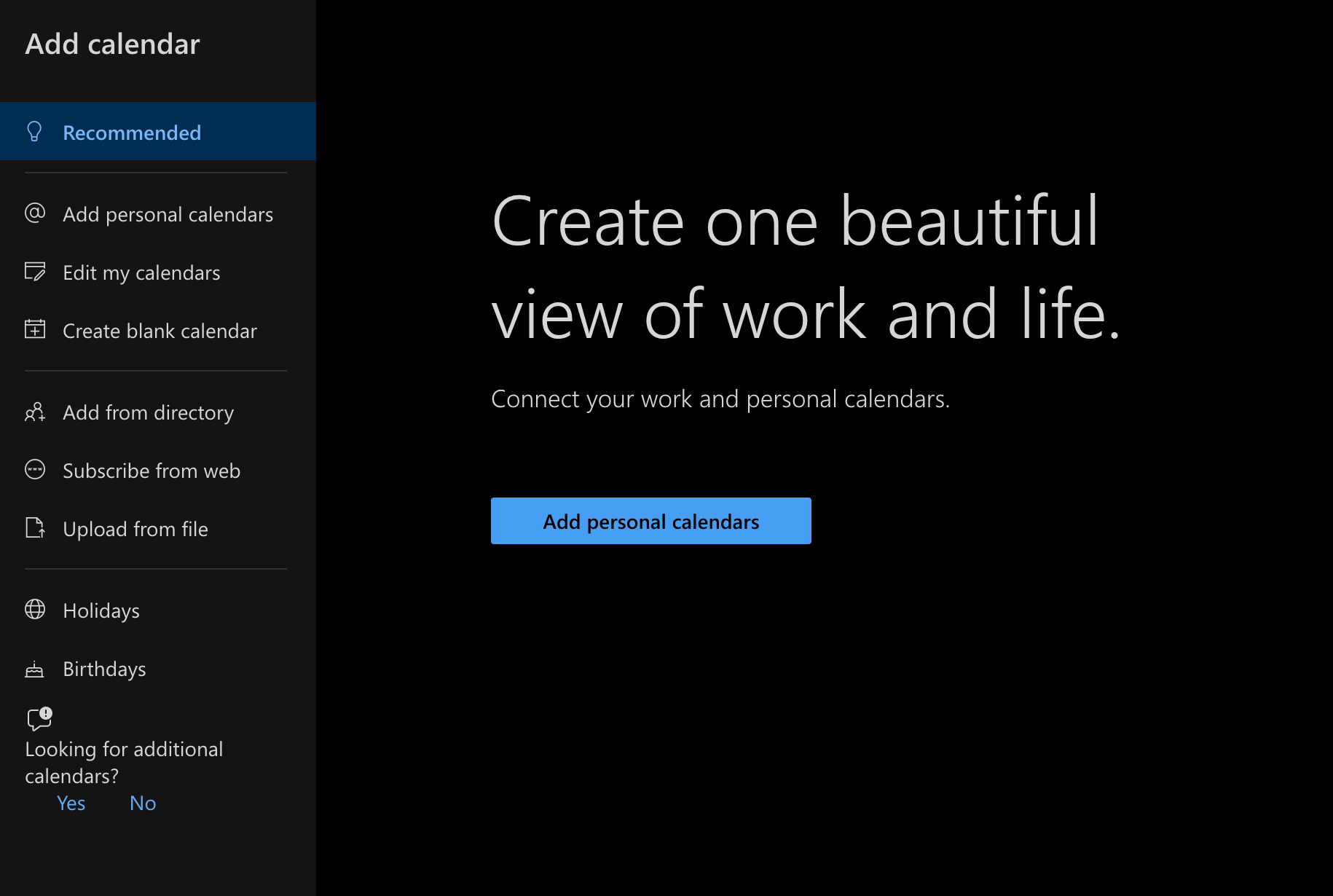
3. Select "Add from directory"
In the Add calendar panel that opens, click Add from directory.
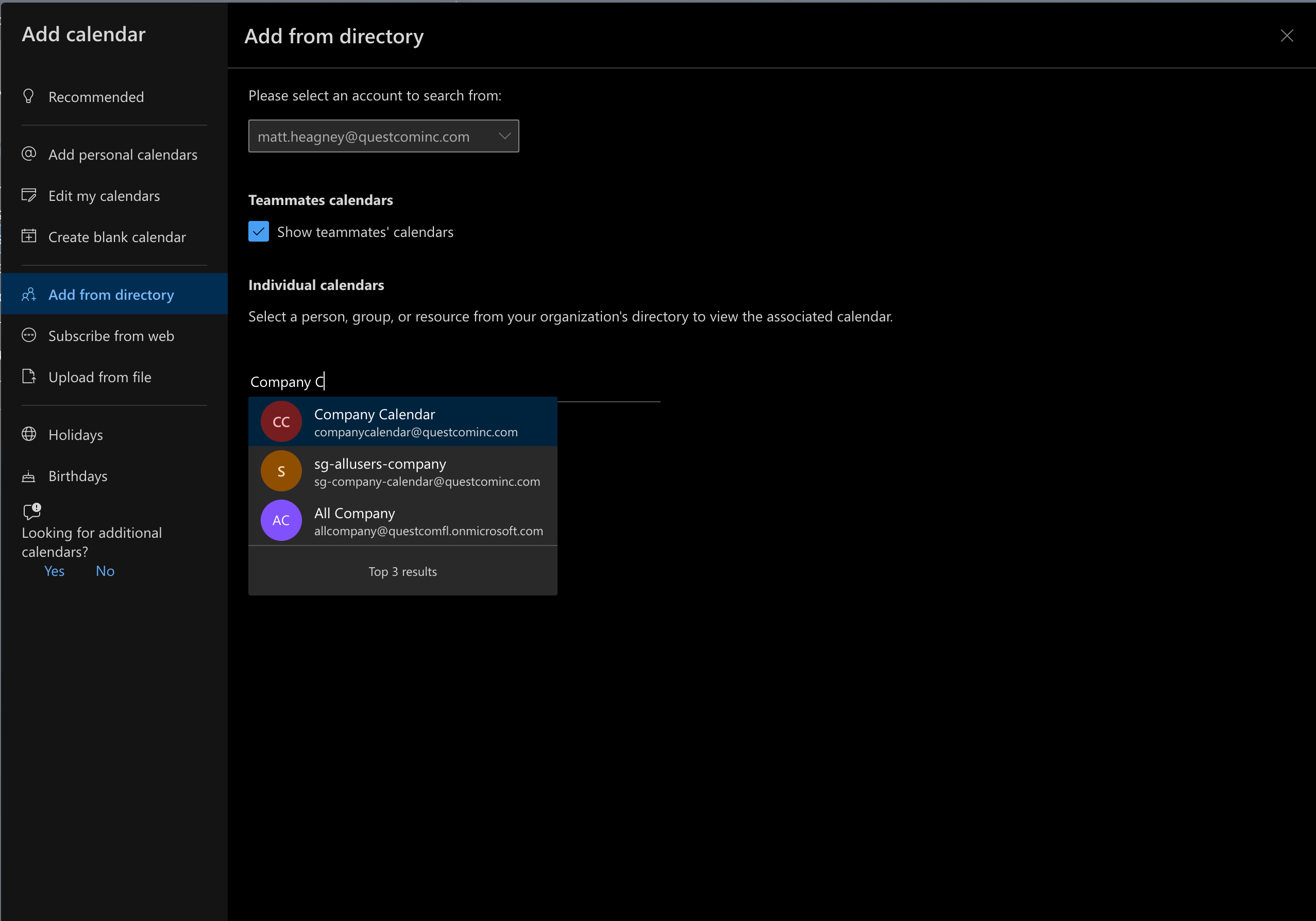
4. Search for the company calendar
In the search box, type Company Calendar and select it from the results.
5. Click Add
Confirm the selection and click Add. The calendar will appear in your sidebar and its events will be visible on your calendar.
Troubleshooting
| Problem | Solution |
|---|---|
| Calendar doesn't appear in search results | Make sure you are signed in with your company Microsoft 365 account, not a personal account |
| Events from the calendar are not showing | Check that the calendar is toggled on in the sidebar (click the colored dot next to its name) |
| Still having trouble | Contact IT at tech.support@questcominc.com |