Set Up Microsoft Authenticator — Android
Microsoft Authenticator provides two-factor authentication (2FA) for your M365 account. This guide covers installation and enrollment on an Android phone.
What you need
- An Android phone
- Access to the Google Play Store
- Your company email (
your.name@questcominc.com) and password - A computer with Chrome open to https://aka.ms/mfasetup
Part 1 — Install the app on your phone
- On your Android phone, open the Google Play Store.
- Search for Microsoft Authenticator.
- Tap the result published by Microsoft Corporation.
- Tap Install and wait for the download to complete.
- Tap Open.
Part 2 — Enroll your account on your computer
- On your computer, open Chrome and go to https://aka.ms/mfasetup.
- Sign in with
your.name@questcominc.comif prompted. - Click Add sign-in method.
- Choose Authenticator app from the dropdown and click Add.
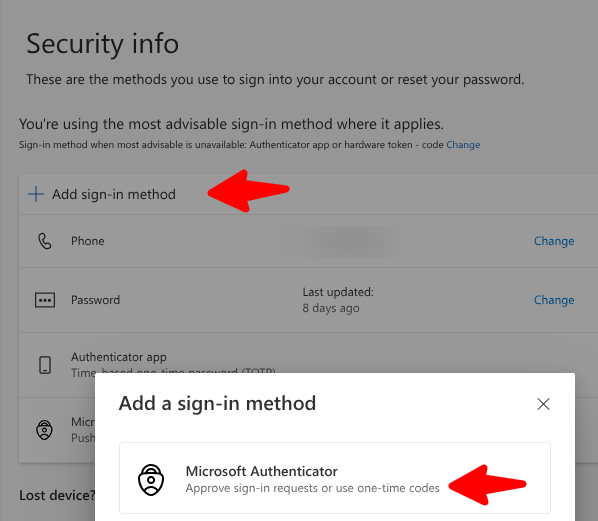
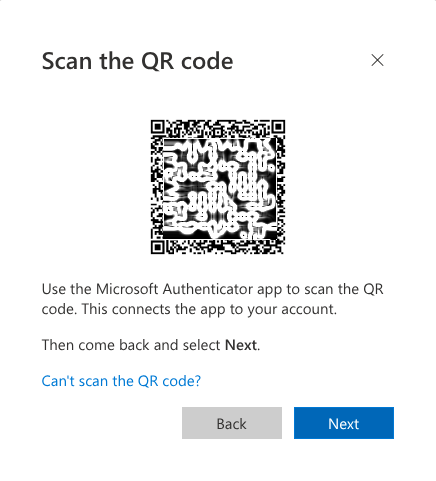
- Click Next through the first two screens — Microsoft will display a QR code.
Part 3 — Link the app to your account
- On your Android phone, open Microsoft Authenticator.
- Tap Add account (or the + icon in the top right).
- Tap Work or school account.
- Tap Scan a QR code.
- Point your phone camera at the QR code on your computer screen.
The app will scan automatically and add your questcominc.com account.
Part 4 — Complete verification
- On your computer, click Next after the QR code screen.
- Microsoft will send a test notification to your phone.
- On your phone, tap Approve when the prompt appears.
- Back on your computer, you should see a Notification approved confirmation.
- Click Next, then Done.
Using Authenticator day-to-day
Each time you sign into M365 from a new device or browser, you will receive a push notification on your phone. Simply tap Approve to complete the login.
Keep your phone accessible
Without your phone, you will not be able to approve sign-in requests. If you lose your phone or replace it, contact IT immediately to reset your 2FA.
Need help?
Contact Tech Support at tech.support@questcominc.com.