Getting Into Microsoft 365
Your Microsoft 365 account gives you access to Outlook, Teams, SharePoint, and other company tools. Follow these steps the first time you sign in.
What you need
- Your company email address (
your.name@questcominc.com) - Your Temporary password
Important!
Your temporary password should be: Quest[last 4 of SSN]!
Example: Quest0000! ( Note the ! at the end)
- A phone for two-factor authentication (set up after first login)
Step 1 — Get your Microsoft 365 Account Setup
- Open Chrome (or any browser).
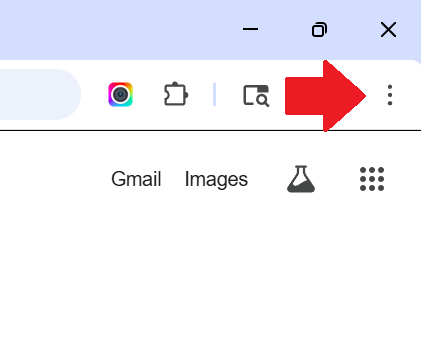
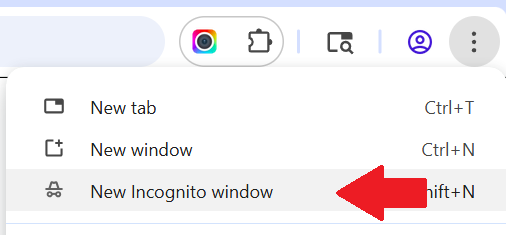
- Click on the three dots in the upper right hand corner, then select New Incognito Window
- Navigate to https://myaccount.microsoft.com.
- Type your company email:
your.name@questcominc.com
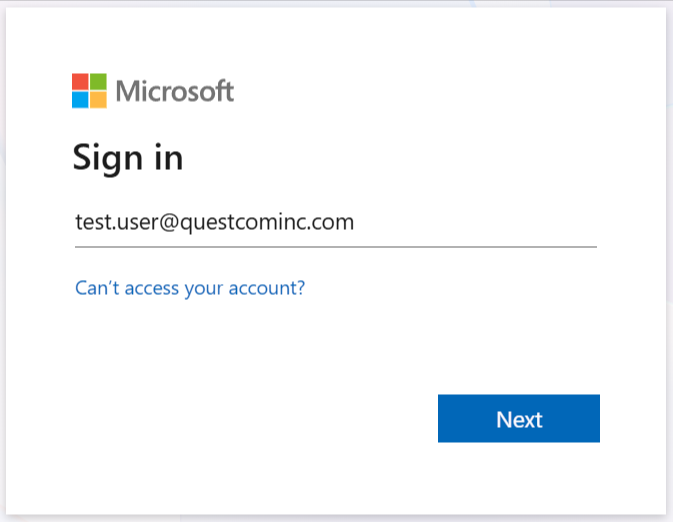
- Click Next.
Personal Account
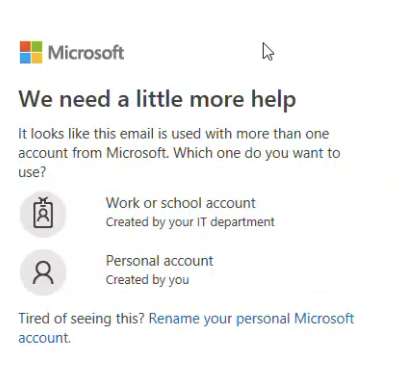
If you had previously signed up for M365 using your questcominc.com account, you may see the following options.
You want to select "Work or school account"
6. Enter the temporary password provided by IT.
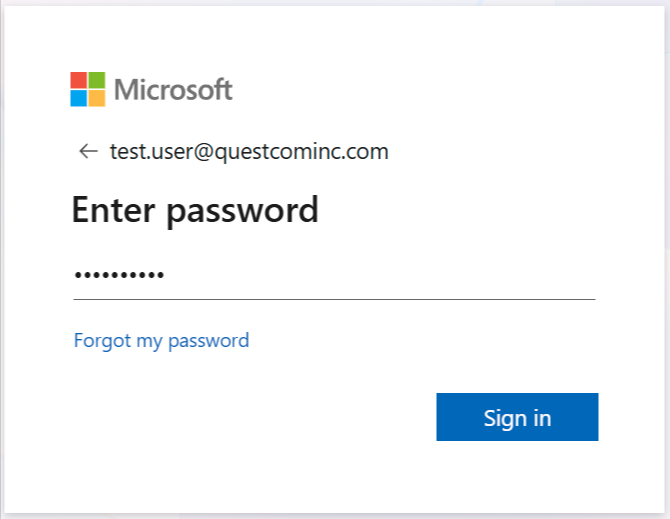
7. Click Sign in.
8. Create a new password and enter it in both the New password and Confirm password fields.
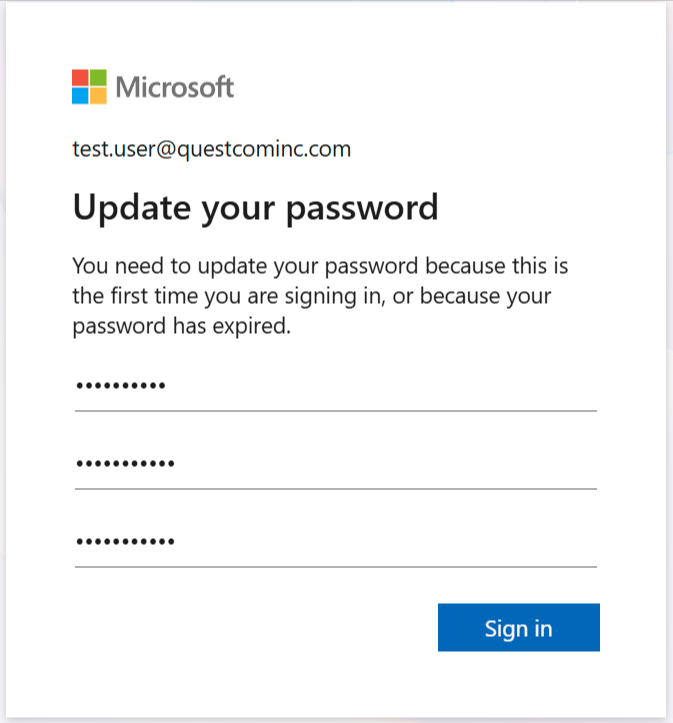
9. Click Sign in.
Remember this password
IT cannot tell you your password if you forget, it can only reset the current password.
Step 3 — Set up two-factor authentication (2FA)
Microsoft will prompt you to set up additional security. This requires the Microsoft Authenticator app on your phone.
- Android phone? Follow the Set Up Authenticator — Android guide.
- iPhone? Follow the Set Up Authenticator — iPhone guide.
Complete that guide, then return here and click Done in the browser prompt.
Step 4 — Stay signed in
Microsoft will ask "Stay signed in?"
- Click Yes on a company device.
- Click No on a shared or personal device.
You're in
You should now see the Microsoft 365 home screen with your apps listed. Your setup is complete.
Next step: Access Outlook in Chrome or configure the Outlook desktop app.
Need help?
Contact Tech Support at tech.support@questcominc.com.